Pinnovation Template Tips
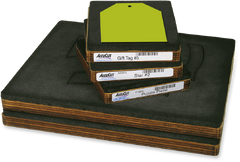
Looking for Pinnovation templates? Pinnovation PDF and Microsoft Word templates can be found on each Pinnovation die product page. Simply search for the product by item number using the Search field at the top right of the site. See all Pinnovation dies
Setting Up Your Document Using a Microsoft® Word Template
To download a Microsoft® Word template, go to the product page for the Pinnovation die and follow these steps:
- On the Details tab, right click on the “Microsoft Word Template” link.
- Templates for vertical and horizontal orientations of final shape are provided when applicable.
- Select “Save Target As” or “Save Link As” from the right click menu.
- Name the file and select where to save it. The “Save As Type” field should be set to “Word Document” or “Microsoft Word Document.”
- Start Microsoft® Word.
- Click on “File” and then “Open” and browse for the saved template. Double-click on the name of the template file you saved.
- Highlight the sample “Text” content in each cell and replace it with your own content and/or images. You can then format the text font, size, color and style. To add an image, click on the “Insert” drop-down menu, select “Picture” and “From File”. Locate the image you wish to insert.
- These templates are printer ready. You can send the file directly to your home printer and the gray lines will not print.
Setting Up Your Document Using an Adobe® PDF Template
PDF templates (viewable using Adobe® Reader®) can be used in page layout and graphic programs such as Adobe® InDesign®, Illustrator® and Photoshop®, QuarkXPress® and others. To download a PDF template, go to the product page for the Pinnovation die and follow these steps:
- Right click on the “Download” link for the desired die.
- Select “Save Target As” or “Save Link As” from the right click menu.
- Name the file and select where to save it. The “Save As Type” field should be set to “Adobe Acrobat Document.”
- Start your page layout or graphics program and create a new 8 1/2" x 11" document with the desired page orientation (horizontal or vertical). (Note: Create a 11" x 17" document if that is the page size for the Pinnovation die.)
- Place or import the PDF file into your document. (In Adobe software, click “File” and “Place” and locate the PDF template.) You may need to rotate the image to match your page orientation. Move the PDF template so it is directly on top of the page.
- Add your own content and/or images to your document.
- Before printing, you will need to remove or hide the PDF template.
Printing Your Test Sheet and Finalizing Your Document (Both Template Styles)
- Print a test sheet on plain paper (not the actual stock for your project). This allows you to check the alignment of all text and images. It is recommended that you manually feed the paper into your printer.
- Place the die transparency that came with the die on top of the printed test sheet. Determine if any adjustments need to be made to your design. You may need to adjust the top margin in your Word document or the elements in your document due to shifting caused by your printer. Repeat the process until you are satisfied with the location of your design.
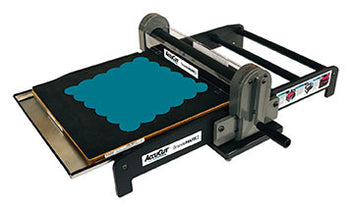
- As one last check, use your AccuCut die to cut out the stationery pieces. With the die in the GrandeMARK machine tray, place the printed test sheet face-down on the foam side of the die. (Note that some dies are symmetrical and can be placed either direction on the die, while others need to be inserted a specific direction to align with the location of the blades.) Place the cutting plastic on top of the die, making sure all of the registration pins are covered by the plastic sheet. Roll the die through the machine and remove the die cuts. If you are satisfied with the cuts, then you are ready to print your document. If necessary, make adjustments until you are satisfied.